Working from a café, hotel, train station or client site is normal for many small businesses. The convenience is obvious: open the laptop, join the Wi-Fi and carry on with email and cloud work. The risk is easy to overlook because the network has a familiar name or a password at reception.
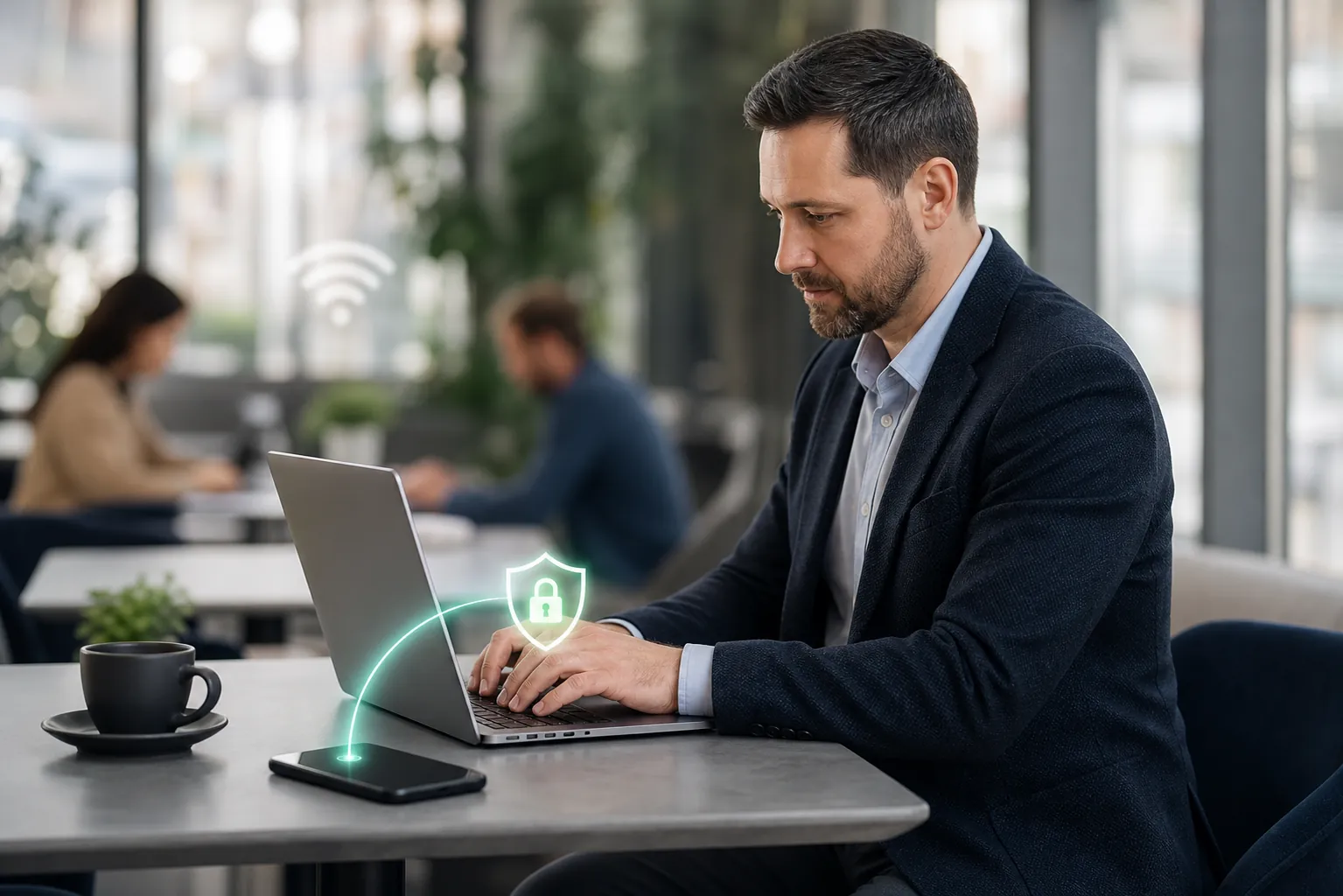
Working from a café, hotel, train station or client site is normal for many small businesses. The convenience is obvious: open the laptop, join the Wi-Fi and carry on with email and cloud work. The risk is easy to overlook because the network has a familiar name or a password at reception.
A password only controls who joins. It does not prove who runs the network, how it is configured or who else is connected. A fake hotspot can copy a genuine name. A poorly configured network can expose more information than expected. Modern websites encrypt much of what you send, but that is not a reason to treat every public network as safe.
For a small firm, the important question is practical: could a problem on this connection expose a work login, customer information or a route back to business systems? If the answer matters, use a connection you control.
Treat public Wi-Fi as untrusted. It may be fine for low-risk browsing, reading industry news or checking a menu. For work email, Microsoft 365 or Google Workspace, CRM, customer files, finance systems and remote access, use a business mobile hotspot or another trusted connection.
A hotspot uses the phone's mobile data rather than the local café or hotel network. It is not a complete security solution, but it removes one layer of uncertainty and is simple enough for a busy team to follow. If your IT provider supplies a VPN — a protected connection between the device and the business service — use it as instructed as well. A VPN helps protect data in transit; it does not make phishing emails, lost laptops or weak passwords safe.
A few minutes of preparation prevents rushed decisions later.
Sometimes a hotspot will not work: the signal may be weak, the phone may be unavailable or the work may be urgent. In that situation, reduce what you do rather than abandoning every precaution.
Confirm the exact network name with the venue. Do not choose one simply because it has the strongest signal. Avoid entering sensitive information unless it is genuinely necessary. Do not approve a browser security warning, install a certificate, download unknown software or accept a configuration profile to "get online". Those requests deserve a pause and a call to your IT provider.
Use multi-factor authentication on important accounts and sign out when finished. Before leaving, disconnect from the network and tell the device to forget it if it is unlikely to be used again. That prevents automatic reconnection later.
Imagine a 12-person consultancy from Bury visiting a client and working from a hotel for the afternoon. The team can use the hotel network for a quick news search or to view a public website. The director uses a company hotspot for Microsoft 365, the CRM and customer documents. Everyone follows the same rule, so the safest choice does not depend on who happens to be travelling that day.
If the mobile signal is too weak for a critical task, the right response is to delay it, move to a trusted connection or contact Managed IT Support. A short delay is usually less costly than turning a network shortcut into an account or data incident.
Write a one-sentence rule into your acceptable-use guidance: "Public Wi-Fi is for low-risk browsing. Use a business hotspot or approved VPN for work email, files and business systems."
Then test it with staff. Ask them to show how they would disable auto-join, connect to the hotspot and report a suspicious prompt. Managed IT Support can review the settings on company devices, confirm whether a VPN is appropriate and help choose a practical mobile fallback.
The goal is not to stop people working away from the office. It is to remove guesswork. A small, repeatable habit keeps important work away from networks the business does not control and makes remote working more predictable.
Start today by switching off automatic Wi-Fi joining on one work device and testing the company hotspot. That is a simple step towards keeping Your Technology, Managed the Right Way.
Book a free IT review and we'll show you exactly where your current setup is costing you money, leaving you exposed, or slowing your team down. No obligation, no hard sell.