An unlocked screen can feel like a harmless oversight. Someone steps away to make a coffee, joins a meeting or answers the door, planning to return in a minute. In that minute, however, an email inbox, customer record, payroll screen or shared file may be visible to anyone passing the desk.
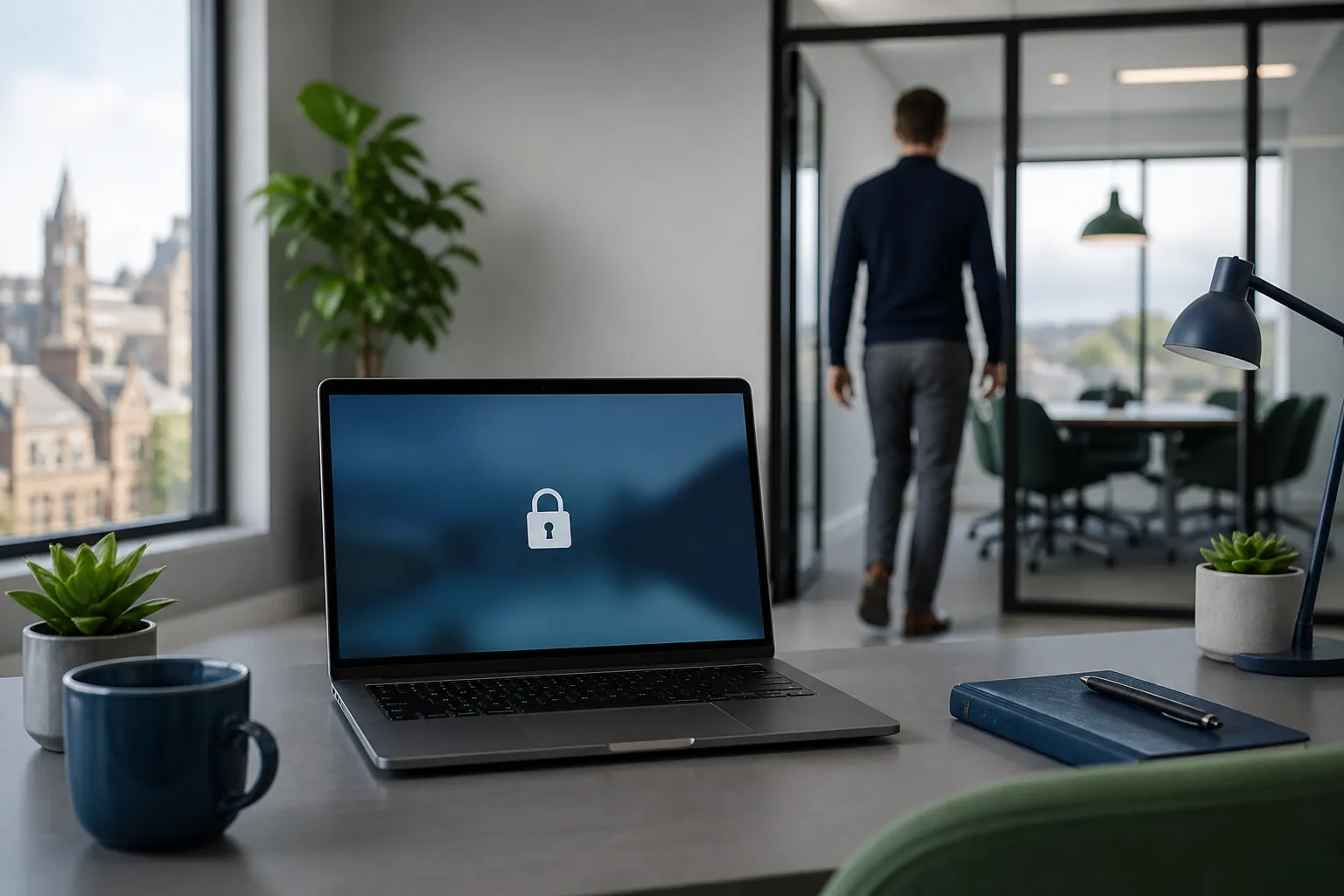
An unlocked screen can feel like a harmless oversight. Someone steps away to make a coffee, joins a meeting or answers the door, planning to return in a minute.
In that minute, however, an email inbox, customer record, payroll screen or shared file may be visible to anyone passing the desk. For a small business in Bolton, Bury or elsewhere across the North West, this is an easy risk to overlook because it does not look like a traditional cyber attack. No suspicious link needs to be clicked. No complicated hacking tool is required. Physical access to an open session may be enough.
Automatic screen locking is a simple layer of protection. After a device has been idle for a set period, it locks and asks the user to sign in again. It does not replace multi-factor authentication, encryption or endpoint protection, but it helps prevent casual access when a laptop or desktop is unattended.
Most work devices stay signed in to several useful services at once. Microsoft 365, Google Workspace, Teams, SharePoint, OneDrive, accounting systems and customer-management tools may all be open in the background.
An unauthorised person could potentially:
This does not mean every unattended screen will lead to an incident. The point is that a small business should not rely on everyone nearby being trustworthy, careful and authorised to see the information on display. Locking the screen closes the session while the employee is away, much like closing an office door.
For many ordinary office environments, five minutes is a sensible starting point. It is short enough to reduce exposure but long enough not to interrupt someone who is reading or thinking through a task. A business handling especially sensitive information may choose a shorter period, based on its risk assessment and working practices.
The important thing is to set a consistent rule rather than leaving the choice to each person. Ask Managed IT Support to check the policy across company laptops, desktops and shared workstations. Central management is more reliable than sending an instruction once and hoping every device is configured correctly.
Also check phones and tablets used for work. A phone may contain business email, customer contacts, authenticator apps and files just as valuable as those on a laptop. A short automatic-lock time and a strong device PIN are useful protections, especially when staff travel between client sites, home and the office.
Automatic locking is a safety net, not an excuse to leave a session open. Staff should lock their screen whenever they stand up, even if they expect to be away for less than a minute.
Useful shortcuts include:
Minimising a window or switching off a monitor is not the same as locking the device. The session may still be available to the next person who moves the mouse or presses a key. Similarly, writing a PIN on a note beside the screen undermines the protection.
The habit is easier to adopt when it is included in onboarding, discussed during security awareness training and modelled by managers. A simple reminder near a hot-desk area can help without making security feel complicated or intrusive.
An automatic-lock review should include more than the finance director's laptop. Look at the places where a device is most likely to be visible to visitors or shared by several people:
Remote workers also need the same standard. Working from the kitchen table does not remove the risk; it simply changes who might see the screen. When working in a café, hotel or client site, automatic locking should sit alongside the other safeguards the business uses for travel and remote access.
A business owner or office manager can test the basics without technical knowledge:
This quick check can also reveal devices that are no longer managed, use weak PINs or have been left signed in for convenience. Those issues can then be handled as part of a wider device-security review.
Screen locking is not a dramatic security project. It is a quiet control that reduces the chance of someone viewing or using a work session when the authorised employee is not there. Combined with MFA, encryption, sensible permissions, updates and good backup practice, it helps create a more resilient working environment.
The next step is simple: check one device today, then make the same standard apply across the business. If you are unsure which settings are active on your laptops, phones or shared workstations, Managed IT Support can carry out a quick health check and help put your technology, managed the right way, on a consistent footing.
Book a free IT review and we'll show you exactly where your current setup is costing you money, leaving you exposed, or slowing your team down. No obligation, no hard sell.