
An office printer rarely starts a cybersecurity conversation. It sits quietly in a corner, produces the pages people need and is usually only noticed when the toner runs out. But modern printers are not just machines that put ink on paper.
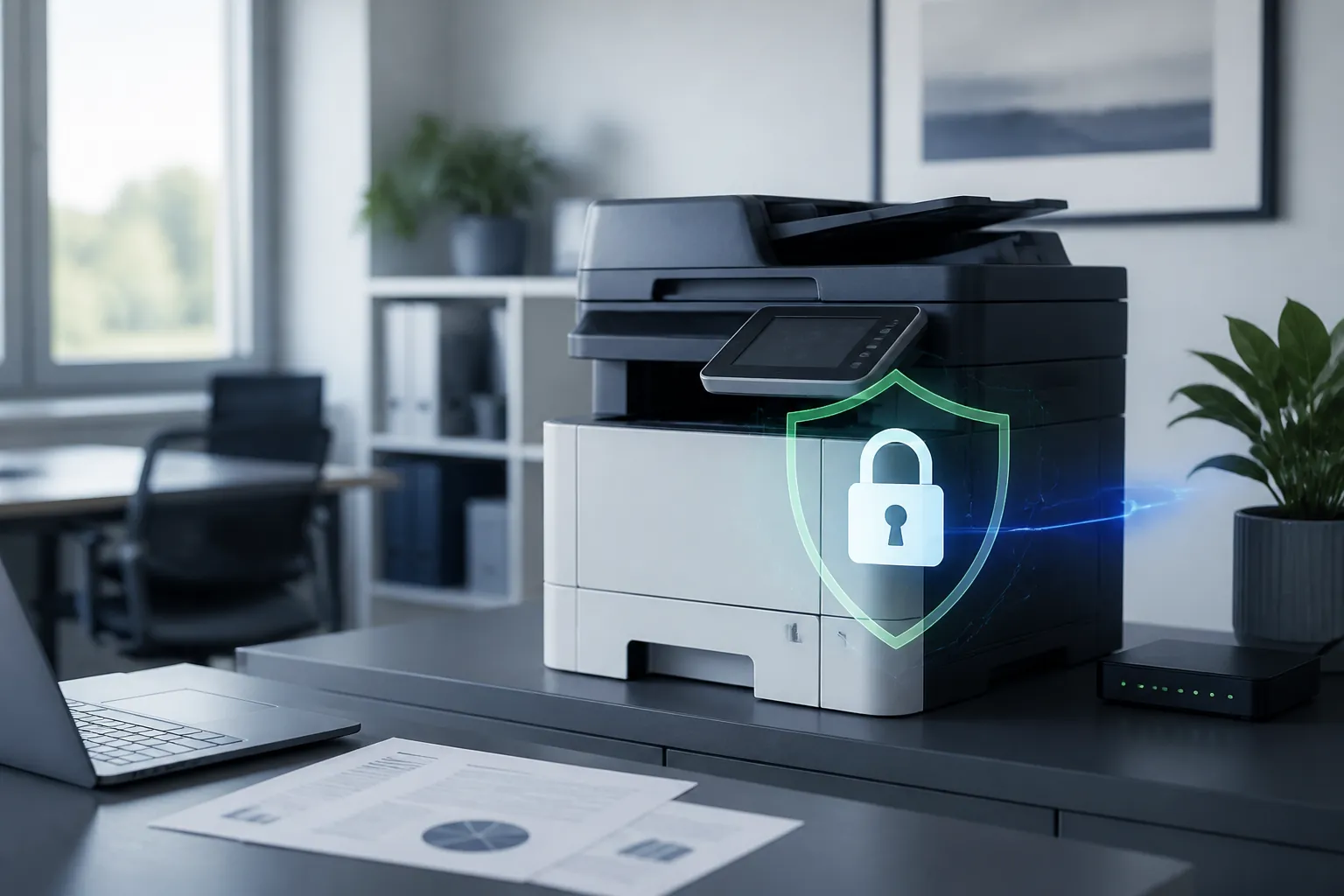
An office printer rarely starts a cybersecurity conversation. It sits quietly in a corner, produces the pages people need and is usually only noticed when the toner runs out. But modern printers are not just machines that put ink on paper. A multifunction printer can scan documents, send email, store job history, connect to cloud services and run its own software.
That makes it a networked business device, much like a laptop or phone. If nobody knows who manages it, which features are enabled or whether it is still supported, the printer can become an overlooked gap in an otherwise sensible IT setup.
For a small firm, the issue is rarely about adding another complicated security project. It is about closing a few basic gaps before they create lost documents, unwanted access or an avoidable support problem.
Most printers have two very different types of access. Staff need to print or scan. An administrator can change the printer's network settings, stored accounts, firmware and security options. Those are not the same thing.
The first check is whether the administrator account still uses the default password supplied by the manufacturer or installer. If it does, change it to a unique, strong password and store it in the approved business password manager. Do not reuse the office Wi-Fi password, a Microsoft 365 password or a password used on another device.
Access to the administrator account should be limited to the people or provider who genuinely need it. Keeping a note of it on the side of the printer, or sharing it in a group chat, defeats the purpose. A named person should also know how to retrieve it safely when support is required.
Firmware is the software built into the printer that controls how it operates. Manufacturers release firmware updates to fix faults, improve compatibility and sometimes address security weaknesses.
Ask your IT provider to confirm:
Do not download a random update from a search result or install a file just because a pop-up recommends it. Printer updates should come from the manufacturer or a trusted IT provider, using the correct model and a controlled process. If an older printer is no longer supported, replacing it or placing it on a suitably separated network may be safer than keeping it indefinitely.
Printers often arrive with more options enabled than a small business needs. Remote printing, direct wireless connections, old scan-to-email accounts or remote administration may be useful in one environment and unnecessary in another.
Review the features with the people who use the printer and disable anything that has no clear business reason. The aim is not to switch off useful functionality blindly. It is to reduce the number of ways the device can be reached, changed or used unexpectedly.
If the printer is managed through a cloud portal, check who has access there too. A forgotten supplier account or former employee's login can leave control in the wrong hands even when the printer itself is sitting safely in the office.
Security is not only about the network. Printed information can create a problem when it is left on a tray, visible to visitors or collected by the wrong person.
For sensitive documents, consider secure release or PIN printing, where the job waits until the authorised person confirms it at the printer. This is useful for payroll, HR records, customer identification, contracts and confidential financial information.
Also check whether the printer stores temporary copies of scans or print jobs. Storage behaviour varies by model, so ask the manufacturer or IT provider what is retained and how it can be cleared. Before a printer is sold, recycled or returned, make sure stored data is removed using the correct reset or disposal process.
Imagine a 17-person estate agency in Bolton with one multifunction printer in an open office. It handles tenancy agreements, identity documents and financial paperwork. The printer was installed years ago, but nobody can remember who holds the administrator password or when the firmware was last checked.
A short review finds that the default admin password is still in use, old remote-print settings are enabled and sensitive pages are being left in the output tray. The business changes the admin credentials, applies a supported update, disables the unused feature and introduces PIN release for confidential jobs. Staff still print in the same way, but the device is now understood and managed rather than left on its factory settings.
Add the printer to the same basic register as laptops, phones and network equipment. Record its model, location, support status, administrator owner and the features the business actually uses. Include it when your IT provider reviews devices and network changes.
Give staff one simple rule: collect sensitive pages immediately and report anything unusual on the printer, such as a new prompt, a changed setting or an unexpected document. They do not need to troubleshoot it themselves.
A printer does not need to be treated as a specialist security project. It needs to be treated as what it is: a connected business device that deserves a unique password, supported software and sensible access controls. Start by asking who controls your office printer today and whether it is still running with the settings it arrived with. That is a small step towards keeping Your Technology, Managed the Right Way.
Book a free IT review and we'll show you exactly where your current setup is costing you money, leaving you exposed, or slowing your team down. No obligation, no hard sell.